Variables
Variables are atomic representations of either primitive or Unity types. They provide a way to store and share data between features, promoting decoupling and modularity in your project.
You can also Create your own Variables by looking at the examples.
1. Create a Variable in the Editor
To create a variable, follow these steps:
- In the Unity Editor, right-click in the Project window or within a desired folder.
- Select "Create" and navigate to "Variables" to create a new variable asset.
- Give the variable a meaningful name and configure its initial values and settings.
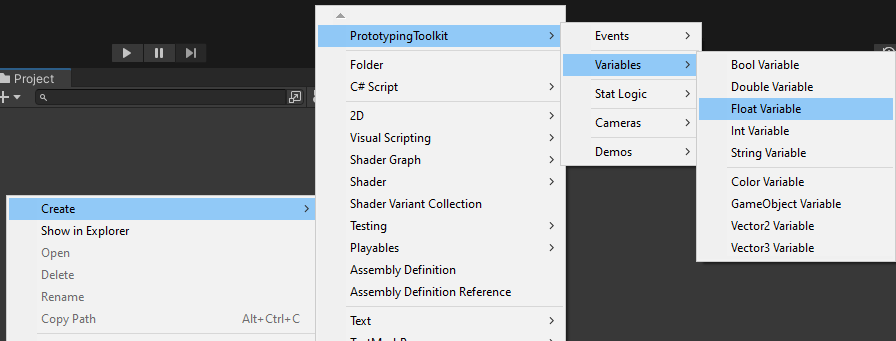
2. Adjust Values in the Editor
Once the variable is created, you can adjust its values and settings in the Inspector.
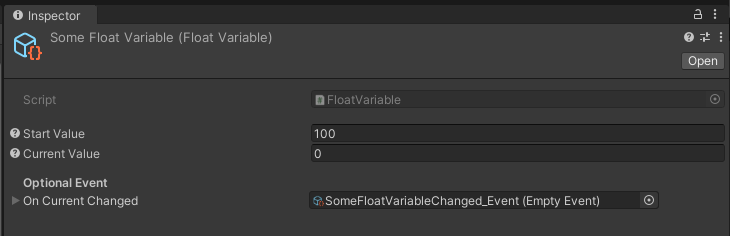
- The
Start Valueneeds to be set in the Inspector and will be copied to the "Current Value" at runtime. Changing it at runtime will have no effect. - The
Current Valuerepresents the actual value of the variable during runtime. It can be modified at runtime for testing purposes or to reflect dynamic changes in your project. - The
On Current Changedevent is optional and can be used to define a callback that will be invoked when the "Current Value" is changed.
3. How to use the Variable
public class Something : MonoBehaviour
{
    [SerializeField] private FloatVariable someVariable;

    private void DoSomething()
    {
        someVariable.Set(10);
    }
}
4. Use the Variable
public class Something : MonoBehaviour
{
    [SerializeField] private FloatVariable someVariable;

    private void DoSomething()
    {
        Some some = someVariable.Get();
    }
}
API
The following public methods are available for working with variables:
| Public Methods | Description | Parameter |
|---|---|---|
| StartValue | Getter/setter for the start value of the variable. | - |
| OnCurrentChanged | Getter/setter for the callback event raised when the "Current Value" is changed. | - |
| Get | Retrieves the current value of the variable. | - |
| Set | Sets the current value of the variable. | T value, bool raiseChangedEvent = true |
| Restore | Sets the current value of the variable to its start value. | bool raiseChangedEvent = false |
Use these methods/properties to access and manipulate the variable's values as needed in your code.